How to put a Bible verse on your iPhone Lock Screen
There are two ways. A widget shows a new verse every day: press and hold the Lock Screen, tap Customize, tap Lock Screen, then the box under the clock, and choose a Bible-verse widget. A wallpaper shows one verse all the time: save an image of the verse and set it in Settings › Wallpaper. A widget updates itself; a wallpaper never changes.
Widget or wallpaper?
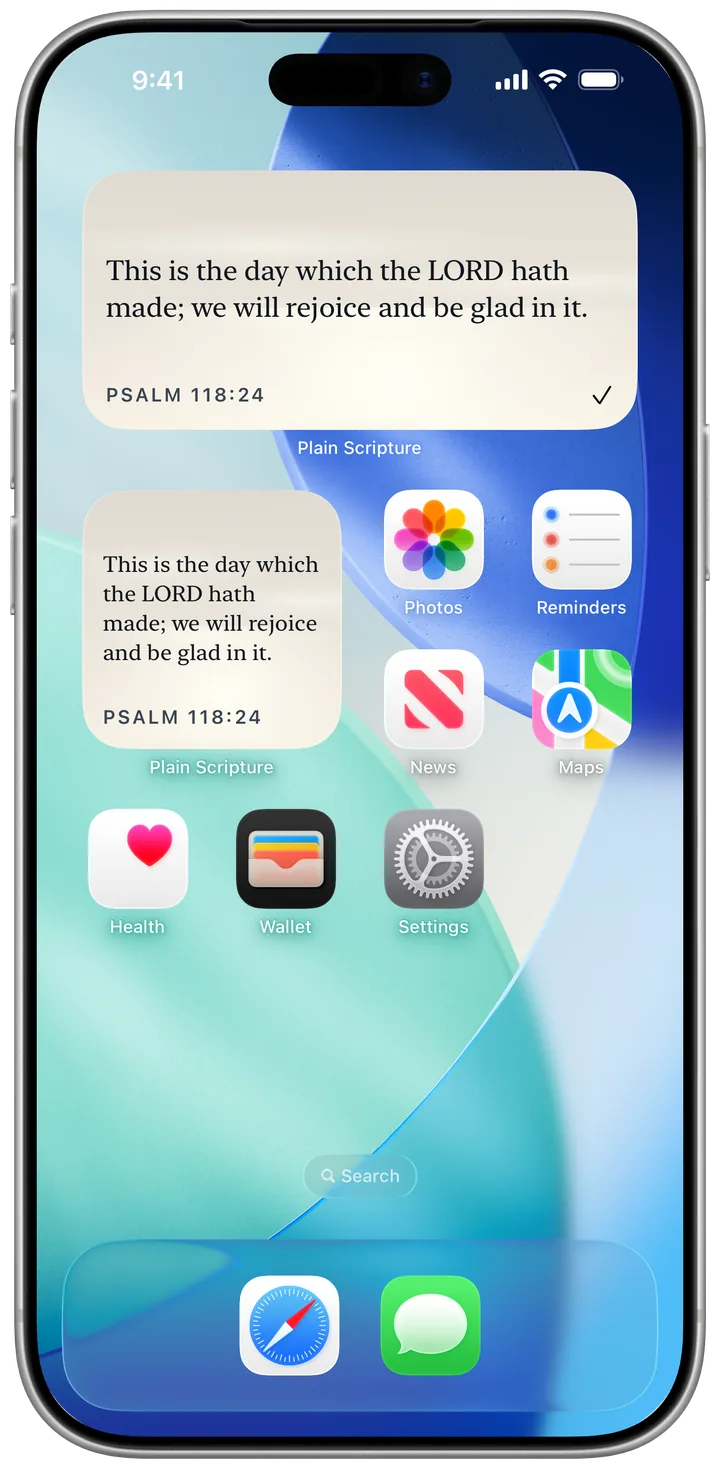
- A widget shows a different verse every day and updates by itself. It sits under the clock on the Lock Screen, on the Home Screen, or in StandBy at night.
- A wallpaper shows one verse, always the same, behind everything. It's simple, but it never changes until you change it.
If you want to see a new verse each morning without opening an app, use a widget.
Add a verse widget to the Lock Screen
- Press and hold anywhere on the Lock Screen (unlock with Face ID first) until the wallpapers appear.
- Tap Customize, then Lock Screen.
- Tap the box under the clock (or the small line above it).
- Find your Bible-verse app in the list — in Plain Scripture the widget is called Daily Verse — and tap the size you want.
- Close the widget panel (×), then tap Done.
The wide box under the clock has room for about three short lines — enough for verses like this one:
What time I am afraid, I will trust in thee.
Add a verse widget to the Home Screen
- Press and hold an empty part of the Home Screen until the apps jiggle.
- Tap Edit in the top corner, then Add Widget (on iOS 17, tap the + in the top-left corner).
- Search for your Bible app and pick a size: small, medium or large.
- Tap Add Widget, place it, and tap Done.
Show a verse in StandBy at night
- Lock your iPhone, put it on charge and turn it on its side.
- Swipe sideways until you see the two widget stacks.
- Touch and hold a widget stack, unlock with Face ID, tap + and add the verse widget.
On iPhones with an Always-On display, StandBy turns dim red in a dark room, so a verse at 2 a.m. won't light up the room.
If the verse doesn't change
- Open the app once; iOS then refreshes its widgets.
- Turn off Low Power Mode, which slows background updates.
- Remove the widget and add it again if it still shows yesterday's verse.
Make a verse your wallpaper
- Save an image of the verse to Photos — for example one of our Bible verse wallpapers, made with room for the clock.
- Go to Settings › Wallpaper › Add New Wallpaper › Photos and choose it.
- Move the image so the verse sits below the clock, then tap Add.
This is the day which the LORD hath made; we will rejoice and be glad in it.
Psalm 118:24King James Version
Questions people ask
Can you put a Bible verse widget on the iPhone Lock Screen?
Yes. Since iOS 16 the Lock Screen has room for widgets under the clock. A Bible-verse app with a Lock Screen widget can show the day's verse there; it updates on its own, without opening the app.
Why does my verse widget not update?
Widgets refresh on a schedule iOS decides. If the verse is from yesterday, open the app once — that lets iOS refresh the widget — and check that Low Power Mode is off, which slows background updates.
How do I show a Bible verse in StandBy?
Put your iPhone on charge, lying on its side, with the screen locked. Swipe sideways to the widget view, touch and hold a widget stack, unlock with Face ID, tap the plus button and add the verse widget. StandBy is available on iOS 17 and later.
Can I make a Bible verse my wallpaper instead?
Yes. Save an image of the verse to Photos, then go to Settings › Wallpaper › Add New Wallpaper › Photos and choose it. Leave space at the top for the clock. The verse will stay the same until you change the picture.
Do I need an account or internet for a verse widget?
Not with Plain Scripture: the whole Bible is in the app, so the widget works offline and needs no account. Other apps vary; some require a sign-in.